This guide will contain sections regarding mostly software changes but some hardware points too. This will not go in-detail to address the network your machine is in, which is an important factor second to you, the user.
A general principle I have been taught and still strictly believe is that anyone who has physical access to a machine, has control of it. No matter how secure the password or protection method, there will be a way (whether with time, hardware removal or by extracting data) around it’s defences. There are situations such as virtualised thin-client or “dummy terminal” enviroments where data risks such as local hard disks are not an issue.
Encryption
The word “encrypt” comes from the Greek word kruptos which means ‘hidden’. In IT and data terms, hidden isn’t necessarily the best way to explain it. There are various encryption tools available at both a software and hardware level for both businesses and consumers.
Firstly, windows 10 has Bitlocker. There are free alternatives such as Veracrypt, though please note there maybe requirements (such as changes to group policy/TPM) or hardware requirements (such as a TPM chip).
Bitlocker alone has multiple setup configurations which can act as a secondary authentication (a separate password) to your username/password utilised for Windows. Bitlocker works before loading the operating system making data inaccessible unless decrypted with the correct credentials. This also prevents a hardware attack such as removal of the hard-drive as encryption keys are made against the TPM/hardware ID of the machine.
Encryption doesn’t just end here, there are also freeware tools such as Kleopatra , AxCrypt , Gpd4win and more which can be used for file protection, email encryption and secure messaging. This topic is extensive, but it is a recommended step (even if done with just Windows-inbuilt solution) as it can prevent data loss and can create another layer of security for the device overall.
Two Factor VS Local Account
Now with Windows 10, there are multiple sign in options. Each come with their own security advantage from biometrics (which is unique to you) to 2factor authentication (requiring email/mobile text access) or through the traditional username/password combination. Some sign in options that are associated with having a “Microsoft” account (meaning either any of these: @Outlook.com @live.com @live.co.uk @hotmail.co.uk @hotmail.com or an email address you’ve signed up as a Microsoft account). This can allow for remote management of a device, the ability to login in multiple ways or have your password be associated to a secure account, but it does also put your data straight into the hands of Microsoft. Not only that, but applications and services can feed your usage/habits back to Microsoft.
For those that wouldn’t want this, it’s simple enough to just make a local user account and employ something like bitlocker to make a secondary password to the account. You can also create local administrative accounts in Computer Management which won’t appear as a user account at the login screen (requiring the knowledge of the username).
Privacy/Location Tracking
Now upon it’s release (and before) Windows 10 was controversially sunk deep into privacy concerns. So much so, within the Windows 10 setting menu there is a Privacy category. There is an awful large amount of control you can have here to remove diagnostic data and information such as geolocation/location details.
Prior to this, self-made freeware tools quickly flooded the internet promising ways to mitigate the snooping done by Windows 10. This would often be disabling services, removing registry keys and more. Though some have been confirmed to be legitimate, some have been found to include their own backdoors and also do not prevent Windows Updates from undoing any of the changes made

Antivirus/Firewall solution
The in-built security tool (Windows Defender, previously Windows Security Essentials) of Windows 10 has made leaps of progress since it’s predecessor. What was once laughably considered one of the weakest alternatives to AV has now stepped up to being one of the prime/important software defenses for the Windows OS. Some have already attributed this alone to being why malware authoring/virus scripting is harder in Windows 10 (this and various other security improvements over the older Windows).
However, there are certain engines/tools/functions and benefits that can come from a secondary security solution. I will not advertise which software I recommend (Check here) using multiple AV apps (even if not running at the same time) can be very beneficial. In my own experience in cleaning up viruses, it has sometimes required a combination of tools to clear up an infection.
As most malware infections are “self-inflicted” if an exploit is running with high enough privilege, antivirus engines and software based firewalls can be completely side-stepped leaving the infection untraceable. I’ve seen this with my own eyes and often only cleared up the machine/network by using additional tools after the infection.
UPDATES

If your machine is waiting updates, do them now. Microsoft and software vendors world wide release updates not only for functionality/performance fixes or to resolve issues, most often they are security patches. Windows especially receives a regular round of security patches at least once a month and sometimes even sooner.
Though I can say first hand that untested updates may contain bugs or the possibility of rendering something unworkable (as these updates are not tested in every single scenario/environment before they are released to the public) but this sacrifice is worth having zero-day or currently exploited vulnerabilities left open on your machine. Plugins such as Adobe Flash and Java are so notoriously bad for security flaws due to their wide adoption that they come with their own update preferences. If you are ever given an option by any application to allow automatic updates, I would recommend doing so and making it a user-habit to do so.
Carrying out software/operating system updates no matter how long or tedious should always be done. Big corporations do not like having to fess-up to security flaws and will often try remedy issues discreetly before issuing public warning. Many patch Tuesday releases come with security fixes that are for threats disclosed the same day.
UAC , Least Privilege, Multiple accounts
One security mechanism introduced into Windows 7 which has never left is User Account Control (UAC). Simply put, this is an additional permission prompt which can be set with various levels to stop processes/applications from running automatically. Many types of worms/macros/viruses and malware strains have relied heavily on UAC being turned off or on a low setting
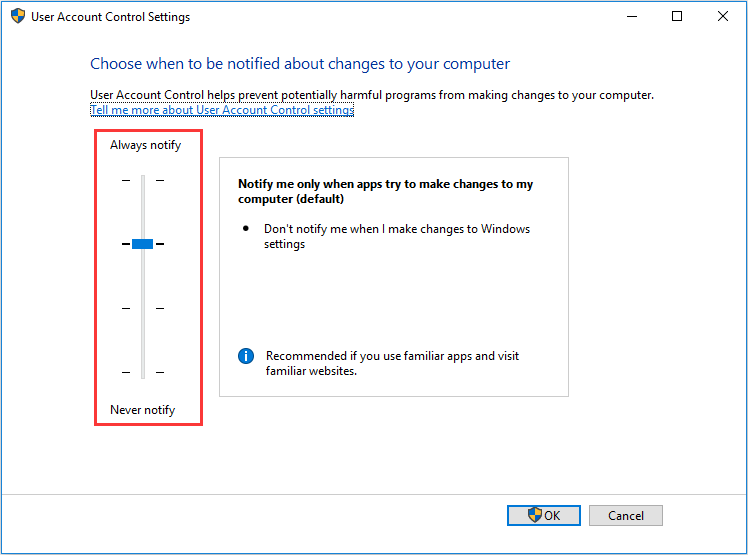
If set correctly, on normal (none administrative) local accounts, no application will run without prompting for administrative details (username and password). Even on an administrative account, this can provide the user an additional warning to assess what application is about to run and to cancel the operation if they didn’t intend for it.
In relation to having tiered accounts, though more user accounts provide more attack surfaces/entrances for hackers to try break, it can also be a great benefit when employing access rights and the least-privilege principle.
For example: If you have a none-technical or none-administrative user who will not be installing software, creating a normal local account with UAC turned on can prevent unwanted games/ad-aware/viruses and more being ran. This also separates the user profiles (within Windows) that are used making the administrative account an alternative if the local account is corrupted or hijacked.
User Habits , Browsers , Passwords and Data

One of the biggest aspects to all things security is the user. You will be the one putting your device on the internet and choosing what it sees. People are often unaware of how much control they have in regards to this, the data they access and the accounts they use. Let us address passwords:
- Do not reuse passwords to multiple accounts – It might be easier to remember but if it’s compromised in one place, multiple of your accounts are compromised.
- Store passwords securely – In a separate post on password managers, I outlined my belief that your mind is the most secure place to store anything. This might not be an easy task for long or hard to guess passwords, but storing them either in an encrypted place (or secured physical copy) can improve security overall. Having a 6 character password you know by memory as opposed to a 28 character (with mixed special characters upper/lower case etc) which is stored in an encrypted vault will be far harder to guess for a hacker.
- Do not share passwords – treat it like your bank 🙂
- Change passwords often – This comes with a warning, predictable or easily guessed patterns like adding a number is not recommended. Updating passwords to a randomly generated string, is.
- Use 2factor where possible – Many sites such as social media, banks, finance systems, personal profiles can utilise 2factor authentication either via SMS/email addresses/phone calls and more. This security application though not full proof will make the job of hacking any account far harder (if not impossible without your phone/alternative email).
Other than just keeping your browser up to date, the way you browse and what you browse can be all the difference security wise. Security professionals isolate devices, virtual machines and even entire networks based on uses.
Personal laptop with all your family photos? Maybe not the best choice to stream pirate movies from.
Fancy Microsoft Surface with corporate data on? Maybe not the best choice to let the kids download “free” games onto.
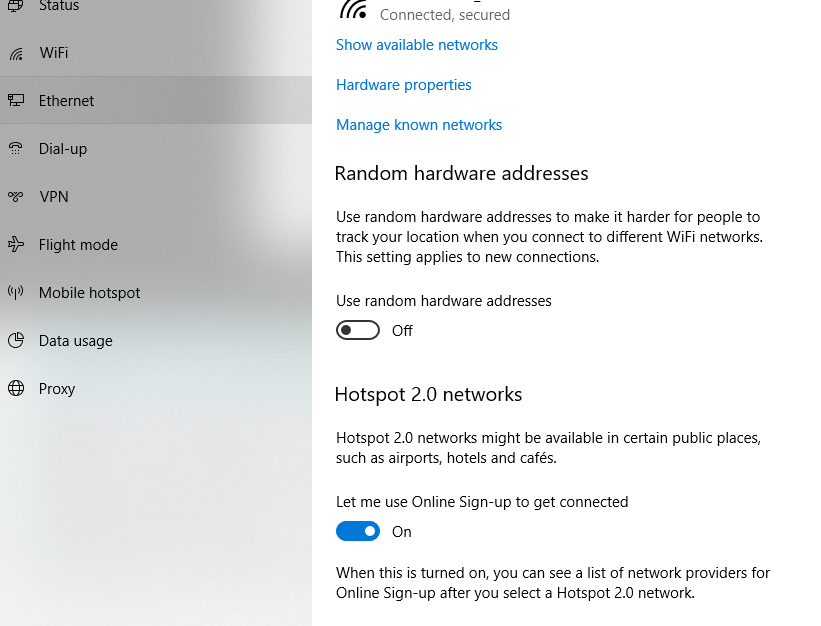
Your overall security can be massively improved by simply changing what data you keep on a machine in comparison/conjunction to what you do on it. If you use your machine for work, keep it off public wireless networks and not for your everyday browsing. Also turn on “Use Random Hardware Address” found in the “Network & Internet” section of Settings. This will help make your device harder to identify on a network (by obscuring the MAC address).
There are additional steps to prevent ISP (internet service provider) snooping, circumvent censorship, anonymize internet traffic and more which won’t be covered in this article. Other than just the data you keep on the machine and what you go on, consider where it is being used and by who. Infections or security breaches can often be unintended yet consequentially caused by the trust/access people are given to devices. If they don’t need to use it or if you don’t trust the network, then simply don’t.
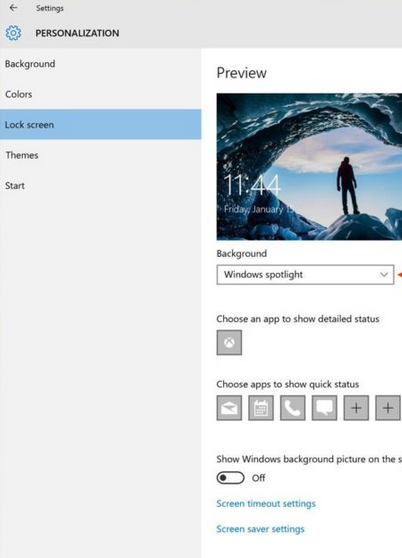
If as a user you are also not in the habit of locking your machine or if you do not have it configured to lock it self, simply right click the desktop and choose “Personalise“.
Further security tips/mitigation guides to specific security vulnerabilities will be posted separately. This overall post may grow overtime but is made as a general guideline of what changes can be made in Windows 10 to improve security & Privacy.
 Fighting the endless fire